Web Development for Artists: 3

Previous: Web Development for Artists: 2
Next: Web Development for Artists: 4
Hello again, hello, dear student. Welcome back to class. It's good to see you here. I feel I've waited for 1,000 years! But here, you've come to say, "hello".
Today we will be seeing how to add a new page to your new website. We do it simply, by adding another HTML file to the collection of files that make up your website. We will also make it easily available to your visitors by adding a link to your index page (aka home page) that references the new page.
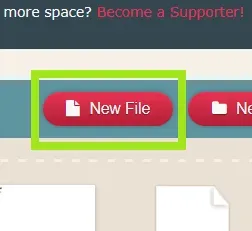
First things first, make a new file with the extension .html. From your Neocities dashboard, click on the "New File" button.
Let's name this file "about.html"
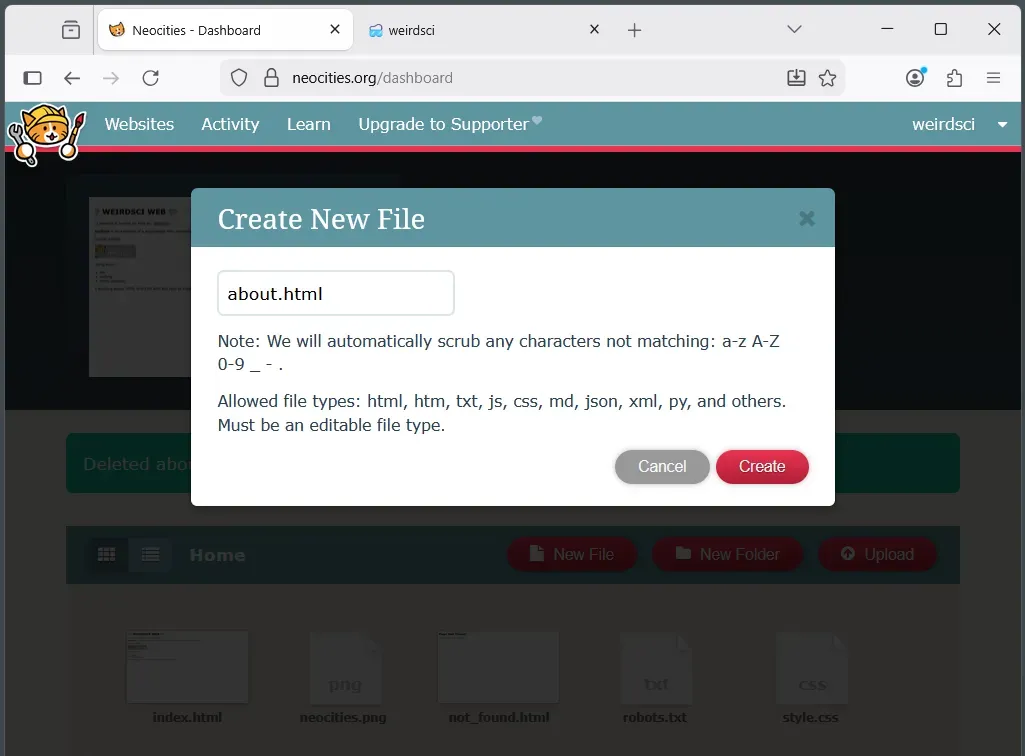
Next, copy all of the contents from "index.html" into "about.html". To do this easily:
- open the editor for both files in new tabs (hover, ctrl+click on the edit icon for each).
- copy all of the text in index.html. Use ctrl+a to select all text, then ctrl+c to copy it.
- switch to the tab for the editing interface for about.html.
- Replace all of the text in about.html. Use ctrl+a to select all of the existing text, then ctrl+v to paste the text that is stored in your clipboard from index.html.
You should now have two files, index.html and about.html with identical contents.
Test to make sure the new page works (and looks identical to your current home page) by clicking on the file in your dashboard.
Notice how the about page has a similar address as the home page (also called the index page or site root) except that it ends in /about. You may realize that this relative address is determined automatically, based on the name that you gave to the HTML file that describes this new page.
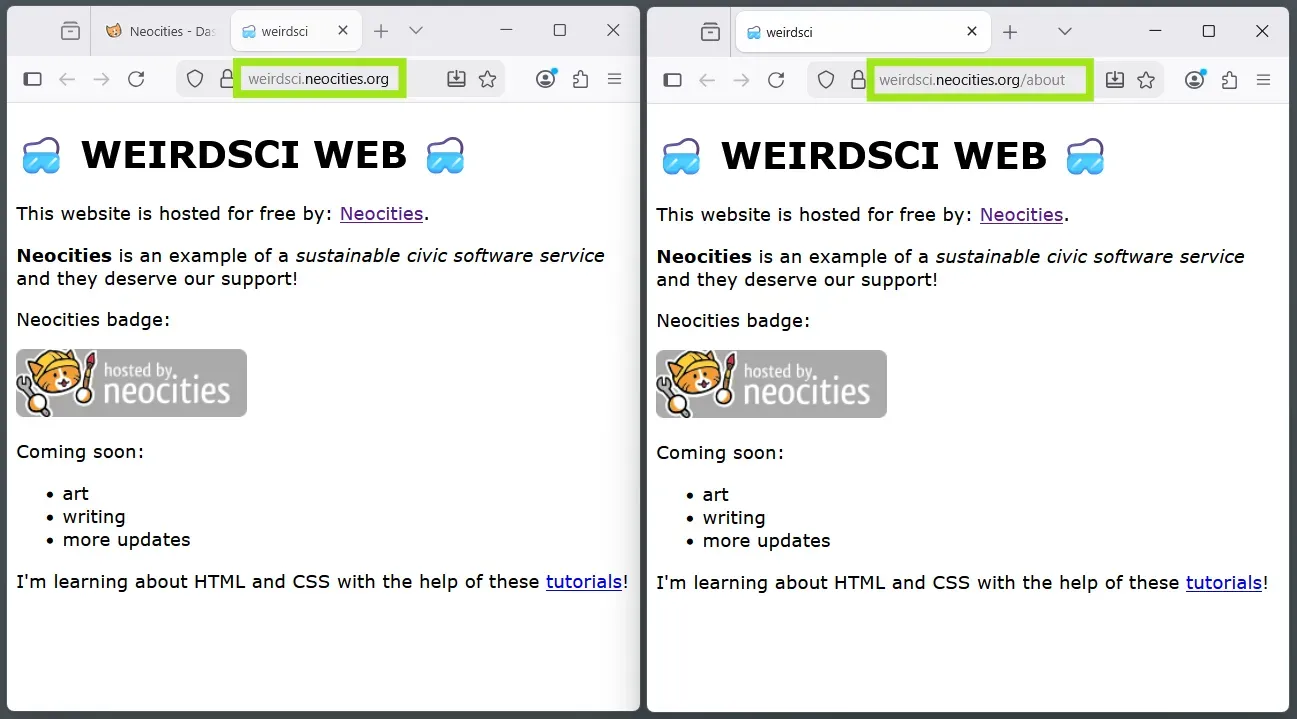
We'll come back to this relative address in a moment to find out why it is worth mentioning.
Now that we have our beautiful home page content moved to an about page, we can make the actual home page do the job that gives it its traditional title (and mandatory filename) of index. An index, as in the sense of a book's index, means it is an entry point that should link to all of the other major pages of your website.
You now have a major page to link to, the about page! Let's update index.html to include a link to this new about page.
To do this, we'll have to add some new code to the index.html file.
Go ahead and open the index.html file in the editing interface (hover, click the "edit" icon).
The template for the code we need to add is already here in the file. In my file, it is line 30 that looks like this (I've formatted it across several lines below):
<p>
    I'm learning about HTML and CSS with the help of these
    <a href="https://neocities.org/tutorials">
        tutorials
    </a>
    !
</p>
This block of code represents an HTML link tag <a> nested inside of a paragraph tag <p>. Notice how the tags each have a corresponding end tag that starts with a slash, and that all tags are nested neatly, like Russian dolls. This is the same pattern we'll use to make a link to our about page.
All we have to do is copy this code, paste it where you like (within reason!), and then update the text and the address. The link's address is assigned to the href (hypertext reference) attribute of the link tag, and is always contained in quotes. When finished, it'll look something like this:
<p>
    Learn more about this website:
    <a href="/about">
        about page
    </a>
</p>
Do you see something strange about the updated address? Does it seem maybe a 'lil short to you? Let me explain real quick: because your about page is part of the same website (it shares what's referred to as a "domain" with your index page), we can reference it by its relative address. Remember that term from earlier? It is the address automatically assigned to this resource (the about.html file) by the dark web technologies of which we aren't yet meant to comprehend.
By assigning the relative address to the link tag ("/about"), we don't have to use the full URL address (The full URL to my about page would be the value "https://weirdsci.neocities.org/about").
Now you have two similar pages, except the index (home) page has a link to the about page:
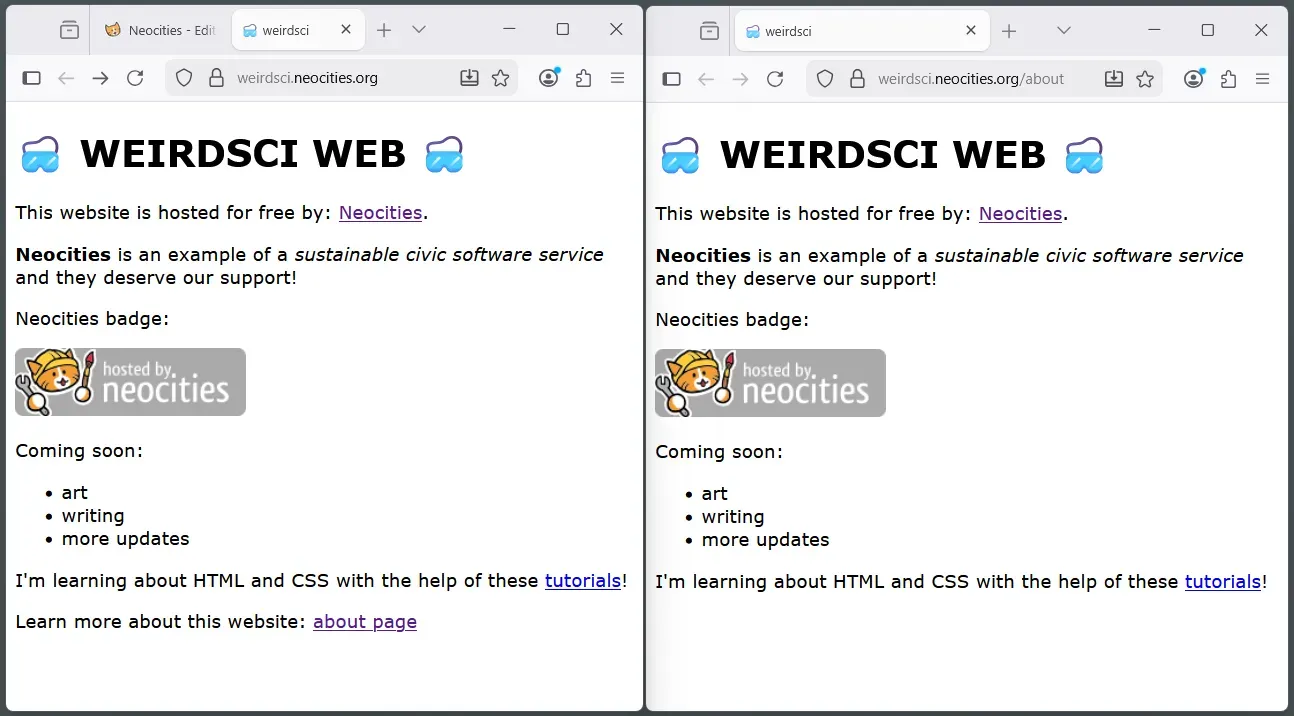
And now I think I'll clean up the home page since the about page is all set. To do this, I just delete all of the tags (and their contents) that I don't want. I'm careful not to leave any incomplete code or mess up the indented formatting. Here's what the the live preview and the HTML code for the updated home page looks like:
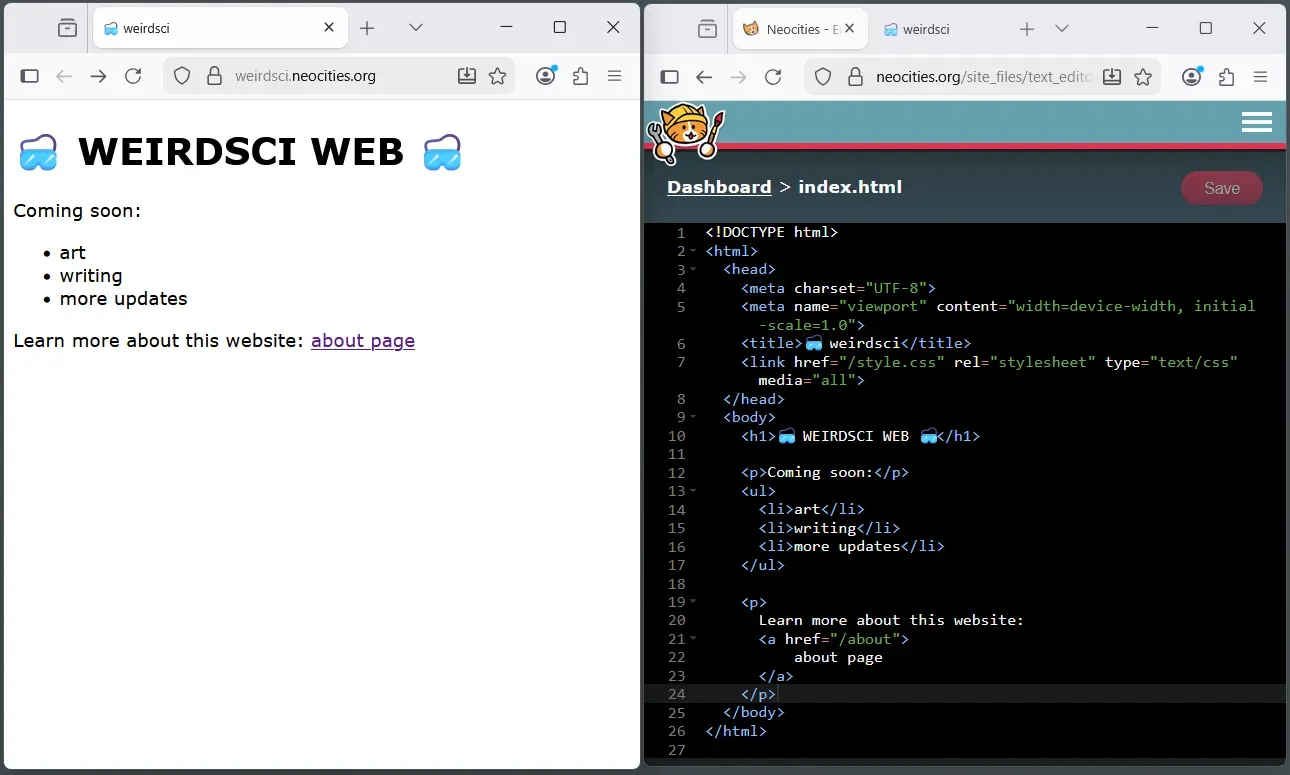
That's all for this lesson. If you have come this far and followed along, you should now have two pages on your website, with the index (home) page linking to your new about page. If you have that, pat pat pat your own back!
🎃 Any questions? We are all here for you.
In the next lesson, we'll add a gallery page where we can display some art. Stay tuned, soon!
<3 Grant
Next: Web Development for Artists: 4